Showing posts with label YouTube. Show all posts

Friday, September 15, 2017

YouTube & Related Content


Many educators love YouTube, but hate all of the extras that come with it. The comments, the suggested videos, the buttons and stats all are distractions to our students. Not to mention you never know what is going to show on the screen while your video plays.

So here are a few ways teachers can show videos and get rid of the distractions.


1. SafeShare.TV https://safeshare.tv/


Sign up for a free account with SafeShareTV or login in with your Google or Facebook account. Look up your video on YouTube. Copy the URL. Go to http://safeshare.tv/  and paste the link in the field.
Then, click the arrow button. A preview page will open where the teacher can set the beginning and ending time of the video as well as make the video private and hide the extra buttons that the SafeShare can generate. SafeShare will create your link that you can now give to students or post on your website, blogs, or favorite social media.


2. View Pure http://viewpure.com/


View Pure works like SafeShare, but you don't have to login. View Pure also allows the user to enter a search term in the box to search for videos. Either enter the URL or the search term and click the Purify button. Your video will appear in a window. Copy the URL and paste in an email, Google Classroom, Webpage or where ever you want someone to access the video.


3. WatchKin https://watchkin.com/ 


Just like View Pure, WatchKin allows users to enter the YouTube URL or search for a video. WatchKin will also generate a shareable link and has buttons to share to your favorite social media. WatchKin also allows the user to mark the video as appropriate or not appropriate.

4. Enter the Video in a Google Slide or Site


Both Slides and Sites has the ability to show YouTube videos.

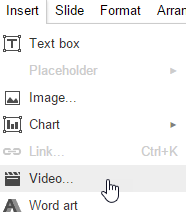
In Slides, open the Insert menu and select Video. Then search for a video to insert or paste the URL into the by URL field.

In Sites (the new Sites), select the Insert tab and find the Google Embeds section. Select the YouTube option. Search for the video you want to insert.


With many different options, teachers will never have to worry again about inappropriate distractions appearing with their YouTube videos again. 


Friday, March 10, 2017

360° Videos


I am a big fan of the whole 360° video sensation sweeping across education at the moment. I like the Google Cardboard/VR Headset idea, but we don't have very many of these in our district. What we do have are big SMARTBoards, 70 Inch Monitors, iPads, and Chromebooks. So we can still utilize the videos, but just not as immersively as the Cardboard experience. 

YouTube has lots of 360° videos posted. However, just a search for 360° video can bring up some inappropriate videos as well. So don't just turn students loose. The teacher should be the one to search. 

I really like the National Geographic videos. Here is a link to their playlist

Don't forget about the Google Arts and Culture website. Many Street View and some 360° views can be found in it as well. 

Some people are afraid to use YouTube with students do to the recommended videos and comments section. So here are a few tips to get around that.

1. Use a tool like https://safeshare.tv/. Enter your YouTube video URL into the box and Generate a Safe View


2.  Use the Insert Video option in Google Slides. Then in Present mode, the 360 Video will still work. 


A Few of my favorite 360° examples


Tuesday, April 19, 2016

Slideshows created in YouTube

Somehow I totally missed this feature in YouTube or didn't know enough what I was doing to share it. You can create photo slideshows on YouTube. This is similar to the Microsoft Photostory software that was all the rage several years ago in the Digital Storytelling world. Basically, you log in to your Google account, go to YouTube, click the upload button, add your photos, texts, transitions, and music, and click the create video button. Looks like you would have to create separate speech files and use those for the audio if you wanted to hear student voice, but I am not sure. Something to play with and figure out.

Kelly Fitzgerald has a great tutorial on how to create slideshows in YouTube, so I bow to her expertise. Make sure to watch her video and visit her blog on creating and editing video. You will be glad you did.


Monday, February 23, 2015

YouTube for Kids

YouTube for Kids is a new service from Google that is "Made for curious little minds." There is both and iOS version and an Android version of the app for phones and tablets.

At first glance it looks very simplistic. The app will display a selection of kid-friendly shows with is represented by a large tile that is easy for little hands to tap on.
There is also a search feature for students that can read and write, plus a microphone to search with the child's own voice. Of course this app is heavily filtered to keep inappropriate content out of sight.

There is also a parent's security feature to set a timer for viewing as well as turn off sound effects. The pass code is interesting as it gives you the code to enter. The numbers are written out. So I guess once you child can read they can set their own settings?!?

All of this seems to be a step in the right direction to help parents in this digital world show their child content and keep them from the inappropriate videos, comments, and advertisements.

Looks like Vine is doing the same type thing with their new app Vine for Kids. It is showing age appropriate six second videos with cute little characters and animations.

Thursday, August 7, 2014

Remove YouTube pop-ups

If you have watched very many YouTube video you know about the irritating  annotations and pop-ups that people can place in their videos. Usually, they want you to subscribe to their channel or link you to other videos. Well there is a fix for that in the YouTube settings.


Click on your avatar icon in the top-right corner of your YouTube page (this only works if you have a Google account and are logged in) and select the YouTube settings gear.
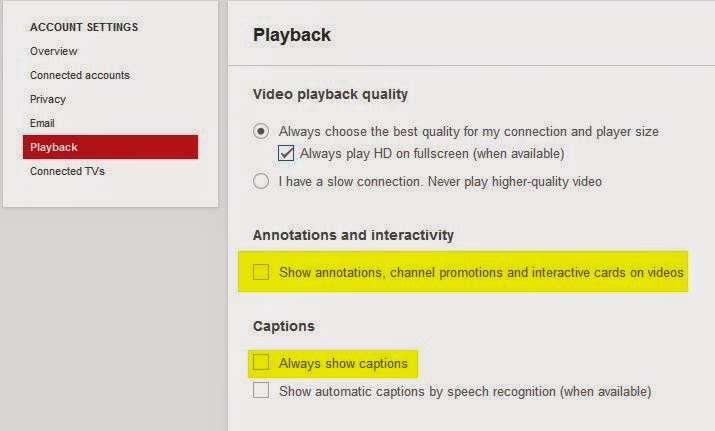
Then open the Playback section of the account settings.

Untick the checkbox beside Show annotations, channel promotions and interactive cards and click the SAVE button.

There is also an option to show captions. If a YouTube video has been uploaded with captions they could automatically play. Unticking the Always show captions box will turn those off.

Now you can watch your videos distraction free, except for those suggested videos and those comments other viewers leave.

Here are tips to solve that!

http://scottfirenza.blogspot.com/2014/04/safesharetv.htm