Showing posts with label Video. Show all posts

Friday, March 10, 2017

360° Videos


I am a big fan of the whole 360° video sensation sweeping across education at the moment. I like the Google Cardboard/VR Headset idea, but we don't have very many of these in our district. What we do have are big SMARTBoards, 70 Inch Monitors, iPads, and Chromebooks. So we can still utilize the videos, but just not as immersively as the Cardboard experience. 

YouTube has lots of 360° videos posted. However, just a search for 360° video can bring up some inappropriate videos as well. So don't just turn students loose. The teacher should be the one to search. 

I really like the National Geographic videos. Here is a link to their playlist

Don't forget about the Google Arts and Culture website. Many Street View and some 360° views can be found in it as well. 

Some people are afraid to use YouTube with students do to the recommended videos and comments section. So here are a few tips to get around that.

1. Use a tool like https://safeshare.tv/. Enter your YouTube video URL into the box and Generate a Safe View


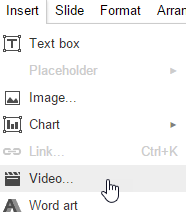
2.  Use the Insert Video option in Google Slides. Then in Present mode, the 360 Video will still work. 

A Few of my favorite 360° examples


Tuesday, April 19, 2016

Slideshows created in YouTube

Somehow I totally missed this feature in YouTube or didn't know enough what I was doing to share it. You can create photo slideshows on YouTube. This is similar to the Microsoft Photostory software that was all the rage several years ago in the Digital Storytelling world. Basically, you log in to your Google account, go to YouTube, click the upload button, add your photos, texts, transitions, and music, and click the create video button. Looks like you would have to create separate speech files and use those for the audio if you wanted to hear student voice, but I am not sure. Something to play with and figure out.

Kelly Fitzgerald has a great tutorial on how to create slideshows in YouTube, so I bow to her expertise. Make sure to watch her video and visit her blog on creating and editing video. You will be glad you did.


Tuesday, January 19, 2016

Biteable

Biteable is a free site that allows users to create short video with very little effort. Users must sign up for a free account and sign in.

Then start by naming a new video Project.


Then the users picks their first scene. There are Animation, Footage, and Image scenes to choose from.

The user then adds text to the scene


To add another scene to the movie, click the green box with the white plus sign. The user will be able to select another scene and add text.


Once all of the scenes have been added, the user can select a color theme and music to go into the video. Looks like users can upload their own .mp3, but why mess with copyright when there is a wide selection of music already available.


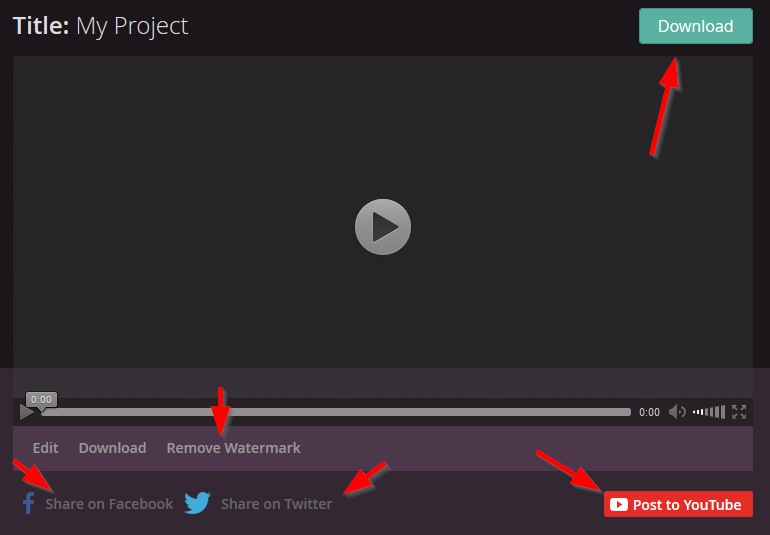
Once at the preview, the user can click the I'm done, build my video button to have their video compiled automatically. The website states it takes about a minute per slide.


Once built, the site will send you an email with the link to the video. It will have a Biteable.com watermark which users can pay to have removed, but I probably wouldn't for most projects since it looks like it is payable by account and not video and the price is $99/year.

.

There is also way to Download the .mp4 video file and a way to easily share your video on Facebook and Twitter.

I can see this being used by classrooms wanting to do some digital storytelling with out all the hassle of a full blown video editor. Students can easily choose their scenes, add their text, select their music, and create their video to share with the world.

Give it a try.
https://app.biteable.com

Thursday, September 24, 2015

360 Degree Video

Recently, YouTube started posting 360 degree video on their service. What that means is you can click and drag across the video and see all views the camera took while the video is playing. Photographs have been allowing that for years (think Google Street View), but now with the advent of 360 degree video cameras (like the Ricoh Theta) video can be taken as well. Try out the video below.


Click and drag across the video to see other angles under the sea.

Where this really shines is on a tablet. Now instead of clicking and dragging, the user can just move the tablet while the video is playing and the video follows the movement. So I hold my iPad, view the video, and turn 90 degrees to the right the video will follow my movements in the same direction to the new point I am turned to. Way too cool!

The cameras are not cheap, but we all know as the technology develops the prices tend to drop. Not every 360 degree video is appropriate so don't just turn students loose searching for video. But what a way to take students to a virtual field trip. Now we see more than just the pictures, or the straight on shot the video taker is looking at. 


Wednesday, August 5, 2015

Animoto Plus for Educators

Looking for an easy way to create presentations that incorporate video, images, music, and text. Then look no further than Animoto. A very easy tool to use to create videos to use in your classroom. Now educators can apply for a free Animoto Plus account. Just visit https://animoto.com/education/classroom?utm_source=retention, fill out the information, and receive a 6 month Plus account.  

Tuesday, April 21, 2015

Stop Animation Creation

From Mozilla comes a fun little website for younger students to learn the basics of stop animation.

http://parapara-editor.mozlabs.jp/sandbox


On the site students can select their colored crayon and size of the tip to use. Students draw their image on the screen. Then students click the frame at the top with the plus sign. A new frame will appear with a shaded image of their first frame to be used for reference. Students then draw their image on the second frame. Continue this process until the stop animation is complete. Press the orange play button to see the images come to life. If animation is to the students liking, they click the OK button at the bottom right corner. They can add a Title to their animation and their name (take care with student information!) and click the send button. This apparently uploads the animation to Mozilla's website.

Students can then email the link to a person of their choosing, scan or save the QR code linked to the video, or just copy and paste the link into a browser to see their animation play out. 

While not the most feature rich program, this does give a good introduction to how stop motion videos are made. Give it a try. 


Thursday, April 16, 2015

Tap Into Your Inner Creativity

Sir Ken Robertson is one of the leading experts on creativity and it's role in education. But, this TED talk from Kermit the Frog is really good. If you have an extra 20 minutes, I think you would enjoy it.
(How did he drink that iced tea?)

Wednesday, April 15, 2015

Chromebook Tutorials


I really like my Chromebook. I use it almost exclusively during meetings and travel. I can access pretty much everything I need to access on the web including my various work and personal email, my work and personal Google Drive, and my Microsoft account for my OneNote notebook where I do the majority of my note taking. Yes, you pretty much have to have Wi-Fi to use the Chromebook, but at work, at home, and traveling that doesn't seem to be to much on an issue.

More and more of our campuses are purchasing Chromebooks for student use. I recently came across the following blog post with videos of basic things you should know how to do to use your Chromebook. Some good stuff. Take a look.

http://www.educatorstechnology.com/2015/03/10-must-watch-video-tutorials-for-chromebook-users.html


You can also access these from their YouTube channel.

https://www.youtube.com/playlist?list=PL5aqr5w5fRe58vnBat8-O6lBB2lreLG0C

Tuesday, January 27, 2015

Videolicious


My friend Candace asked me if I have heard of the app, Videolicious.
https://itunes.apple.com/us/app/videolicious/id400853498?mt=8

I said yes I have heard of it and have used it (but it has been awhile). She asked, "Why haven't you told me about it?!?" I jokingly replied, "Don't you read my blog?"

I was pretty sure I have already talked about this app here, but turns out I haven't. So here you go Candace!

Videolicious is an app that will allow you to enter images or video into your video, talk about each picture, bounce back to the video of you, back to another picture... to create a video. Just tap the part of the screen you want to show in your video. So if you want your talking head to show, make sure the green border is around that. I you want your picture or video to be seen during that part of the video tap the little icon of that picture or video. Then just press the record button and start talking. Probably the most important part is hearing the student tell their story.

What a great tool for digital storytelling! You can also add in music, either using the build in music or music on your phone.


Some limitations:
  • You only have 1 minute of video with the free version. So you will have to teach your students about brevity. But that is a good thing. Great for book trailers, a summary, teaching a concept, tour around the school...
  • It only will save to Email, Facebook, YouTube, Twitter but not to the camera roll. Which means the video is going through Videolicious's server. So when the person receives the email it gives a link that takes you back to their website. 
  • Sometimes the photos may not be centered or show the exact part of the picture you intended.

You can sign up for a free account. It will limit you to 1 user, 1 sound bite, 10 supporting shots (your images and videos), only 1 minute in length, and 20 videos stored on their site.  There are other pricing ($60/yr and $120/yr) that will grant you more access and longer videos. https://videolicious.com/pricing


Wednesday, September 17, 2014

Thursday, August 7, 2014

Remove YouTube pop-ups

If you have watched very many YouTube video you know about the irritating  annotations and pop-ups that people can place in their videos. Usually, they want you to subscribe to their channel or link you to other videos. Well there is a fix for that in the YouTube settings.


Click on your avatar icon in the top-right corner of your YouTube page (this only works if you have a Google account and are logged in) and select the YouTube settings gear.
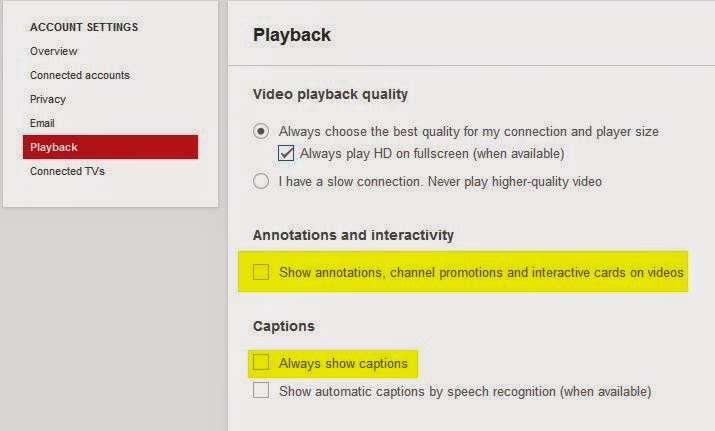
Then open the Playback section of the account settings.

Untick the checkbox beside Show annotations, channel promotions and interactive cards and click the SAVE button.

There is also an option to show captions. If a YouTube video has been uploaded with captions they could automatically play. Unticking the Always show captions box will turn those off.

Now you can watch your videos distraction free, except for those suggested videos and those comments other viewers leave.

Here are tips to solve that!

http://scottfirenza.blogspot.com/2014/04/safesharetv.htm