Showing posts with label Microsoft. Show all posts

Friday, January 20, 2017

Microsoft Photo Apps


My district has been moving more into the Google world so a lot of my posts and tweets are about Google. Today, I want to share some of my favorite Microsoft camera apps.

Office Lens(iOS | Android)
Office Lens trims, enhances and makes pictures of whiteboards and documents readable. Have you ever been in a meeting or at a conference and someone has a lot of information either on a whiteboard or projected onto a screen. In my case, it is hard to write everything down quickly enough. I've tried taking a picture with my phone, but usually, there is a glare or I am standing at some angle that just makes the picture hard to read. That is where Office Lens comes into play. Office Lens will take the photo, crop, enhance, and straighten the picture and allow you to save in a variety of formats.


Microsoft Pix - (iOS)
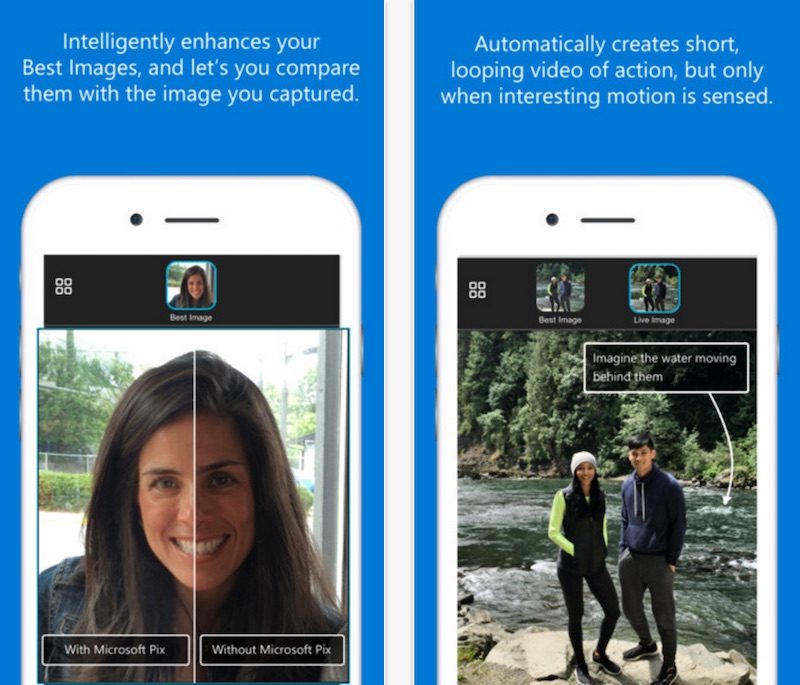
Pix is one of the easiest camera apps for the iPhone and iPad. Just snap the picture, compare the images to select the best photo to edit, and save and share to the apps already on your phone. Pix has face recognition, selects the best image out of a photo burst and works with live photos as well.


Microsoft Selfie - (iOS)
Microsoft Selfie is a selfie and photo enhancement application available on iOS, web and WeChat. A simple tool for creating seflies. The app comes with Intelligent enhancement, noise reduction, and auto exposure editing features.


So if you are looking for ways to use your camera, give these three apps a try. I believe they are worth a look.

Thursday, April 2, 2015

Microsoft Office Lens


There are several document scanners out there for the iOS devices and now Microsoft gets in the game with the release of Office Lens.

Lens works in conjunction with your free Microsoft account and works very nicely with the iOS apps that are now free. https://products.office.com/en/mobile/office

Lens will scan a picture, a document, or a whiteboard from  from a variety of angles, resize, straighten, and sharpen the image and convert the image to text. You can then export it to OneNote, Word, PowerPoint, or a PDF document. Right now it is for the iPhone, but it did work on my iPad mini as well. Looks like an Android app will be coming soon. 


Tuesday, May 20, 2014

Additions to OneNote

I have blogged about Microsoft's OneNote before. http://scottfirenza.blogspot.com/2014/02/onenote.html

I use it for my daily note taking app and like it personally over Evernote.I have OneNote installed at work through our Microsoft Office license, as an app on my iPhone and iPad, and online, which I use mainly when I am out and about with my Chromebook.

1. It's Free!
2. It syncs across all of my devices!
3. It does require a Microsoft account, but that is free, too!

Recent updates seemed to have improve this product even more.

1. Use the Clip to One Note functionality.

Visit https://www.onenote.com/Clipper/OneNote in any major browser and drag the Clip to OneNote button to your bookmarks bar.


Now, when you visit a website that you want to keep a record of, just click the Clip to OneNote button you just added to your bookmarks/favorites bar.
If you have note logged in, you will be prompted to do so.
The page is saved to your online OneNote account. The note saved to my QuickNotes section of my notebook. I can now manipulate this to another notebook or section of my notebook as needed.

2.  Taking a picture with the iPhone or iPad.
Microsoft has built its Office Lens app into OneNote for the iPhone and iPad. This allows users to take pictures of whiteboard notes, receipts and other documents and have them rendered more readable.
iosupdate
Just click the camera icon and select between whiteboard, photo, or document.

If you are looking for a good notes solution, give Microsoft OneNote a try.