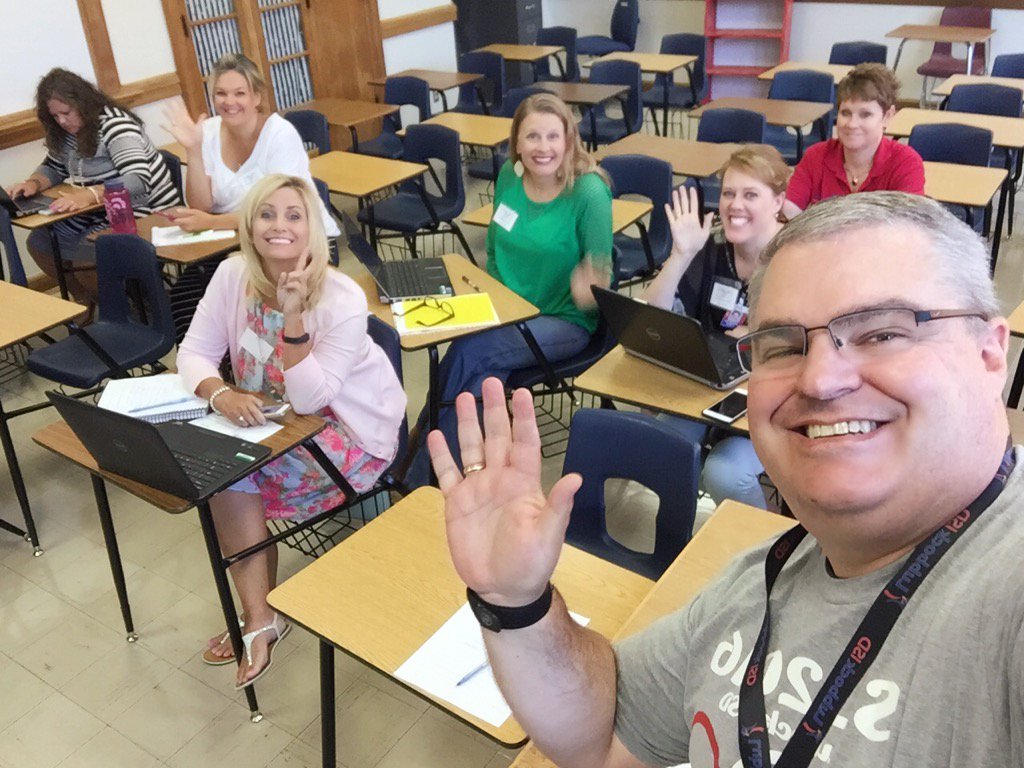
August 1st through the 3rd, Lubbock ISD once again hosted their Summer Leadership Institute for the campus administrators and campus leadership teams.
I was able to present again this year. My title was probably stupid enough to keep people away, but hopefully, the ones that attended understood the message of creativity in the classroom.
Many educators love YouTube, but hate all of the extras that come with it. The comments, the suggested videos, the buttons and stats all are distractions to our students. Not to mention you never know what is going to show on the screen while your video plays.
So here are a few ways teachers can show videos and get rid of the distractions.
Sign up for a free account with SafeShareTV or login in with your Google or Facebook account. Look up your video on YouTube. Copy the URL. Go to http://safeshare.tv/ and paste the link in the field.
Then, click the arrow button. A preview page will open where the teacher can set the beginning and ending time of the video as well as make the video private and hide the extra buttons that the SafeShare can generate. SafeShare will create your link that you can now give to students or post on your website, blogs, or favorite social media.
View Pure works like SafeShare, but you don't have to login. View Pure also allows the user to enter a search term in the box to search for videos. Either enter the URL or the search term and click the Purify button. Your video will appear in a window. Copy the URL and paste in an email, Google Classroom, Webpage or where ever you want someone to access the video.
Just like View Pure, WatchKin allows users to enter the YouTube URL or search for a video. WatchKin will also generate a shareable link and has buttons to share to your favorite social media. WatchKin also allows the user to mark the video as appropriate or not appropriate.
4. Enter the Video in a Google Slide or Site
Both Slides and Sites has the ability to show YouTube videos.
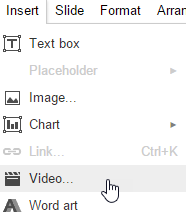
In Slides, open the Insert menu and select Video. Then search for a video to insert or paste the URL into the by URL field.
In Sites (the new Sites), select the Insert tab and find the Google Embeds section. Select the YouTube option. Search for the video you want to insert.
With many different options, teachers will never have to worry again about inappropriate distractions appearing with their YouTube videos again.
I am a big fan of the whole 360° video sensation sweeping across education at the moment. I like the Google Cardboard/VR Headset idea, but we don't have very many of these in our district. What we do have are big SMARTBoards, 70 Inch Monitors, iPads, and Chromebooks. So we can still utilize the videos, but just not as immersively as the Cardboard experience.
YouTube has lots of 360° videos posted. However, just a search for 360° video can bring up some inappropriate videos as well. So don't just turn students loose. The teacher should be the one to search.
I really like the National Geographic videos. Here is a link to their playlist
Don't forget about the Google Arts and Culture website. Many Street View and some 360° views can be found in it as well.
Some people are afraid to use YouTube with students do to the recommended videos and comments section. So here are a few tips to get around that.
1. Use a tool like https://safeshare.tv/. Enter your YouTube video URL into the box and Generate a Safe View
2. Use the Insert Video option in Google Slides. Then in Present mode, the 360 Video will still work.
Recently, Google produced their Education on Air event. Linked above are all of the On Demand sessions you can view for free. Get great tips, tricks, and ideas from around the globe. The link takes you to the Americas sessions, but make sure to check out the Austraila and the United Kingdom tabs as well.
Had a great time presenting at our district's Summer Leadership Institute. Here are links to my presentations.
Sharing is Caring... For Leaders -
I shared out resources for our campus and district leaders to help improve their online communication with their stakeholders (students, parents, community). I shared Blogger, Google Sites, Adobe Spark, Microsoft Sway, Twitter, Canva, the Microsoft Selfie App, Vocoroo, Tricider, and Watchkin. Check out the slide deck for links and training resources.
10 Imperatives for Technology in the Classroom - - Outline
This was a little bit different session that just sharing resource after resource. It was more of theory behind using technology and changing your mindset of what has traditionally been done in the classroom.
I did share some resources on Augmented Reality and dropped a lot of big names in #EdTech.
It sounds like a terrible topic, but I found three videos which will hopefully help you as you prepare for your next presentation. As I prepare for three presentations I have coming up in the next couple of weeks, I watched these videos reminding myself to not be like these presenters (anymore). Hopefully, I don't. Enjoy!
I have really been enjoying the blog from Eric Curts, Control Alt Achieve, lately. I first attended one of his webinars and immediately signed up for his newsletter (which you can do on his website).
From Kelly Fitzgerald comes a great tutorial on some of the issues of a picture background on Google slides and how you can use the Slides master slide to help.
Make sure to check out Kelly's blog at http://edtechnut.blogspot.com/ . You wont be disappointed! She is a wonderful Google trainer and leader in the EdTech community.
Google Slides is a great tool for creating, sharing, and collaborating presentations. The presentation is stored in your Google Drive so it can be access anywhere, anytime. Google Slides does have a few templates for users to work from, but not many.
That is where sites like Slides Carnival come in. This site has many templates you can download to use with your Slides presentation.
Just download the slide deck, open the presentation in your google Slide account, go to the File menu and select make a Copy. You now have a copy to the document in your google drive and you will be able to edit, add, or delete slides as needed. The second slide in the template has a good explanation on how to use the template.
One of the hardest things to get students to do is to cite their research. Where did that picture or article come from.
The following video from Richard Byrne, from Free Technology for Teachers, is a great example of using Google Slides and the research tool to help search for and cite their findings.