Showing posts with label Google. Show all posts

Tuesday, July 21, 2026

Scott's Top 20

 After 33 years in Education and 25+ years focusing on Educational Technology, I have finally retired. Here is my last presentation for our district's Technology Conference. In all my years of presenting, I have never done a top tools or top 10 list. Of course, 10 turned into 20, and 20 turned into more. More than I had time to share. 

Scott's Top 20


This license lets others remix, adapt, and build upon your work non-commercially, and although their new works must also acknowledge you and be non-commercial, they don’t have to license their derivative works on the same terms.

Tuesday, June 24, 2025

Triple G: Gobs of Google Goodies


Had the fun opportunity to present at our district's SPARK Digital Learning conference. It was a very fun group to present Gobs of Google Goodies to. We started with the Cha-Cha Slide and ended singing like Freddie Mercury. Hopefully, fun was had by all.

Triple G: Gobs of Google Goodies


Monday, September 18, 2017

Digital Citizenship and Online Safety course


Google is providing a training course for Teachers on Digital Citizenship and Safety. This course helps teachers understand why this topic is needed for students as well as resources to share with students while teaching and modeling digital citizenship and safety. 


And make sure to check out their other training and certification courses at https://edutrainingcenter.withgoogle.com/

Friday, September 15, 2017

YouTube & Related Content


Many educators love YouTube, but hate all of the extras that come with it. The comments, the suggested videos, the buttons and stats all are distractions to our students. Not to mention you never know what is going to show on the screen while your video plays.

So here are a few ways teachers can show videos and get rid of the distractions.


1. SafeShare.TV https://safeshare.tv/


Sign up for a free account with SafeShareTV or login in with your Google or Facebook account. Look up your video on YouTube. Copy the URL. Go to http://safeshare.tv/  and paste the link in the field.
Then, click the arrow button. A preview page will open where the teacher can set the beginning and ending time of the video as well as make the video private and hide the extra buttons that the SafeShare can generate. SafeShare will create your link that you can now give to students or post on your website, blogs, or favorite social media.


2. View Pure http://viewpure.com/


View Pure works like SafeShare, but you don't have to login. View Pure also allows the user to enter a search term in the box to search for videos. Either enter the URL or the search term and click the Purify button. Your video will appear in a window. Copy the URL and paste in an email, Google Classroom, Webpage or where ever you want someone to access the video.


3. WatchKin https://watchkin.com/ 


Just like View Pure, WatchKin allows users to enter the YouTube URL or search for a video. WatchKin will also generate a shareable link and has buttons to share to your favorite social media. WatchKin also allows the user to mark the video as appropriate or not appropriate.

4. Enter the Video in a Google Slide or Site


Both Slides and Sites has the ability to show YouTube videos.

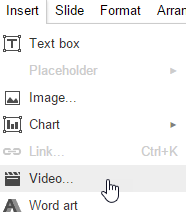
In Slides, open the Insert menu and select Video. Then search for a video to insert or paste the URL into the by URL field.

In Sites (the new Sites), select the Insert tab and find the Google Embeds section. Select the YouTube option. Search for the video you want to insert.


With many different options, teachers will never have to worry again about inappropriate distractions appearing with their YouTube videos again. 


Wednesday, June 21, 2017

Google's Virtual Spinner


Google has added more functionality to their search box. 


Type Spinner into a Google search box and you can use a virtual number spinner (up to 20 numbers).


Or to keep up with the latest craze, switch to a fidget spinner.


On both spinners, the user can either click the SPIN button (multiple clicks gives a faster spin) or click and drag across the spinner (faster drag equals faster spin).


Just another way Google is trying to help virtualize tools for the classroom. What other tools you may ask? Check some of these out.

Basic math calculations - just type in your math problem to see the answer; like a calculator. For that matter type calculator in the search box to use an actual calculator.

Unit Conversions - type in feet in 37 yards, or cups in 20 gallons, or any unit measure dealing with temperature, length, mass, speed, volume, area, or time.

Hex values for Colors - type Color Picker in the search bar, select your color, and get the Hex number values for that perfect color for your project.

Timer - type 5 minutes timer (or whatever value you need) to get that length of time

Tip Calculator - type What is the tip for $50 (or the value of your meal), then set the percent and number of people splitting the check.

Coin Flip - type flip a coin into the search box to flip a coin

Animal Sounds - type What sound does a dog make? It will give you a sound file to listen to. Try it with any animal.

Definitions - type define and your word to get the spelling and definition of the vocabulary word.

Time in another country - type time:Sydney (or your country or state you want to check) to see the current time in that location.

Play Pacman - type Pacman into the search bar to play the Pacman doodle.

Play Breakout - type Atari Breakout into the search bar and select the images tab. Now you can play Breakout of the images Google returned.


Friday, May 19, 2017

Summertime Google Training


https://edutrainingcenter.withgoogle.com/training

Did that say Summertime? How about anytime training? Training all online, on demand, when you are ready to learn.

Many of our teachers in the district have received or will be receiving carts of Chromebooks. The question now is how to use them with students. While teachers may be proficient in the Google tools they utilize, using the tools to enhance the curriculum is another challenge. That is where the Google for Education Training Center comes in.


Teachers that need help getting started should start at the Fundamentals Training. If teachers feels a little confident, the Advanced Training course is available.

Feel like a real beginner? Then maybe start at the Resources section to learn the different Google Tools (like Docs, Slides, Classroom...) as well as all about the Chromebooks.

A wonderful resource for teachers to increase their confidence using Google in the classroom. 

Wednesday, April 12, 2017

IFTTT

I am testing out IFTTT.com to see if I can get Blogger to post to my Facebook page,  https://www.facebook.com/scottfirenza/

IFTTT (If This, Then That) creates recipes to automate tasks. You set the trigger and then something happens.

Like I said, just testing it.

Edit 1:
So it worked, kind of. It went to my district technology Facebook page  https://www.facebook.com/lisdtechdeploy/ . So I had to go into the IFTTT settings and reset the page to the Facebook page for Scott's Place.

Friday, March 10, 2017

360° Videos


I am a big fan of the whole 360° video sensation sweeping across education at the moment. I like the Google Cardboard/VR Headset idea, but we don't have very many of these in our district. What we do have are big SMARTBoards, 70 Inch Monitors, iPads, and Chromebooks. So we can still utilize the videos, but just not as immersively as the Cardboard experience. 

YouTube has lots of 360° videos posted. However, just a search for 360° video can bring up some inappropriate videos as well. So don't just turn students loose. The teacher should be the one to search. 

I really like the National Geographic videos. Here is a link to their playlist

Don't forget about the Google Arts and Culture website. Many Street View and some 360° views can be found in it as well. 

Some people are afraid to use YouTube with students do to the recommended videos and comments section. So here are a few tips to get around that.

1. Use a tool like https://safeshare.tv/. Enter your YouTube video URL into the box and Generate a Safe View


2.  Use the Insert Video option in Google Slides. Then in Present mode, the 360 Video will still work. 


A Few of my favorite 360° examples


Monday, January 30, 2017

Google Arts & Culture


I attended several 30-minute webinars from Simple K-12 over the weekend. Simple K12 is usually membership based one demand lesson plans and webinars and more, but they do offer free webinars as well that anyone can sign up for.

One of the sessions I attended was “Virtual Explorations and Field Trips with Google Tools” with Jerry Swiatek. @jswiatek

He talked about Google Maps and Google Earth, but he could have spent way more than his 30 minutes on just the Google Arts and Culture site. What an amazing resource.

Art classes can zoom in to famous paintings to see brush strokes.
Make sure to check out the projects section for curated media over various topics.

Look up Historical events and figures.

Look at all of the Partner websites associated with this cultural institute site.

See content curated by place.


So much to explore on this site. I strongly urge you to take a look. 

Thursday, January 12, 2017

New update to Google Classroom


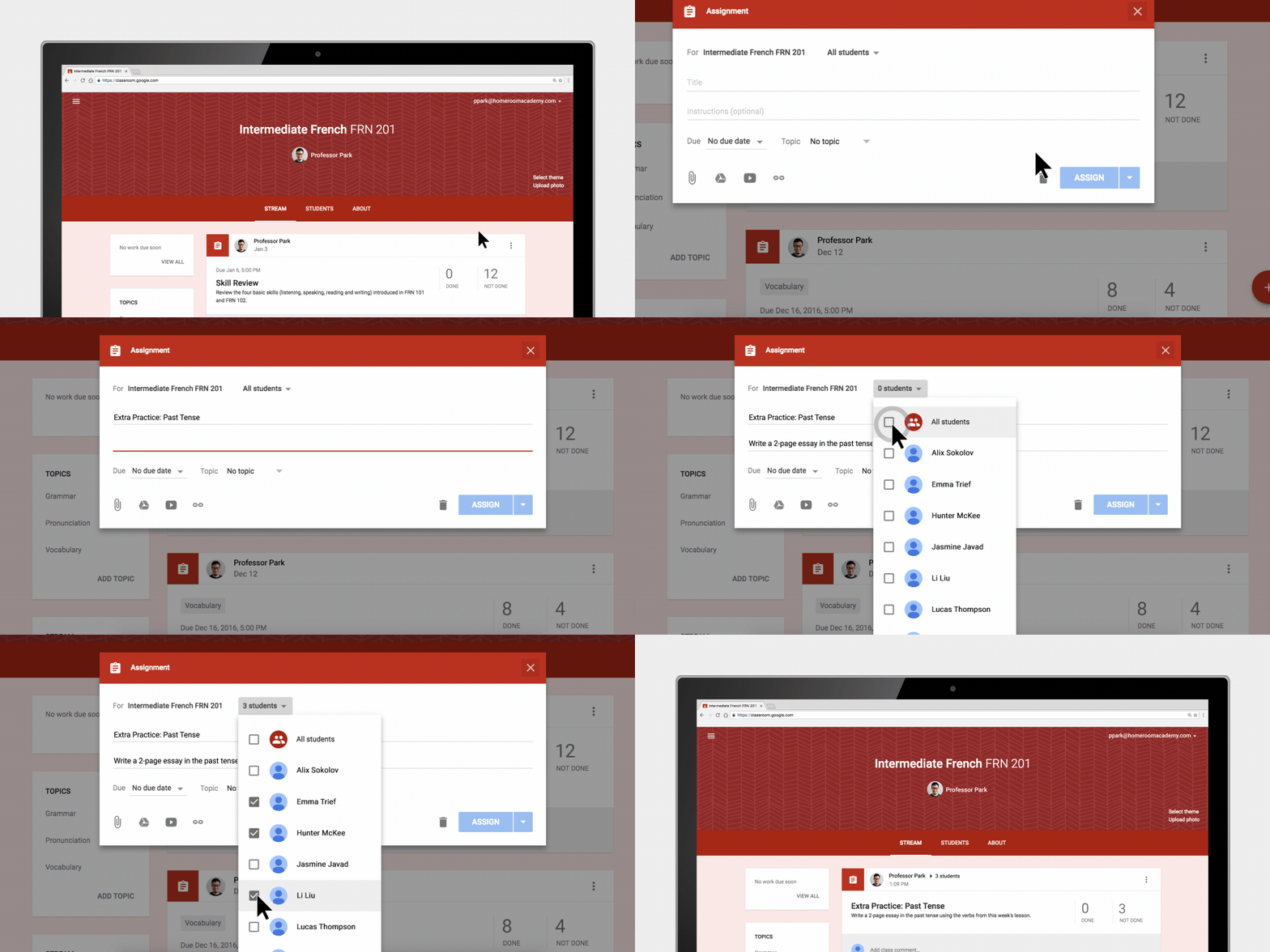
A welcome update to Google Classroom has arrived. Teachers now have the ability to differentiate assignments in Classroom. When a teacher adds an assignment, that assignment can be assigned to one student, multiple students, or all. Many teachers have asked for this and it finally has been added. Great new addition to a wonderful product.

1. In the class in your Classroom, hover over the Add plus button and select Create Assignment

2. Enter the title and any instructions needed.

3. To post an assignment to individual students, click the Down arrow next to the All students.

4. Click All students to deselect it.

5. Select the student(s) by checking each student's name.

6. Add the due date, topic, and materials as needed for the assignment.

7. Click the Assign button.


Monday, December 12, 2016

Google Education On Air: It Takes a Teacher


https://educationonair.withgoogle.com/live/2016-dec?tab=americas

Recently, Google produced their Education on Air event. Linked above are all of the On Demand sessions you can view for free. Get great tips, tricks, and ideas from around the globe. The link takes you to the Americas sessions, but make sure to check out the Austraila and the United Kingdom tabs as well. 

Thursday, May 26, 2016

EdTechTeam South Plains Summit

EdTechTeam South Plains Summit Featuring Google for Education In Partnership With Lubbock ISD

 June 1st and 2nd Lubbock ISD will be hosting a technology summit featuring Google for Education. This event is produced by the help of the EdTechTeam

I will be presenting two sessions at the summit that I am pretty excited about (albeit a bit nervous as I have never presented either of these before).

  • Creativity with Google Drawing - June 1st, 10:00 am
  • Give your Classroom a Voice with Blogger - June 1st, 1:30 pm

My resources can be found at https://goo.gl/ZXEKfF

I use both of these products and have attended many sessions on how to and why to use the products. I hope I can convey that message to my participants.

Still time to sign up for the Conference or the Pre-Conference 


$329 for one person for the two day conference
$199 for one person for the one day pre-conference on May 31st. 


Monday, February 29, 2016

TCEA 16 - Google Sites


If you district is a GAfE district and doesn't have a classroom website system in place, give Google Sites a try. It is very easy to get started with a hub for your classroom communication.

At TCEA I was fortunate to sit in on Christy Fennewald's session on Advanced Google Sites. You can find Christy a Fennovation.org, on her blog at http://digitalliteracy20.blogspot.com/, and on Twitter @christyfenne. If you are into Google she is one to follow. Her information is great and straight forward for all to understand.

From her session, she shared two of her presentation about sites.


Here is her recent blog post about her TCEA presentation.


During her advanced session, she offered many great tips to make your site better. Here are a few that I was able to jot down.

  1. No more than 5 links across the top.
  2. Don't do drop down menus because that is harder to access on a mobile device.
  3. Make an image map using Google Drawings.
  4. It is usually better to make your site from scratch, but admins could make a template for their teachers to use.
  5. 1200 px is a pretty good width.
  6. If there is a blue button, click it.
  7. SiteMaestro is an essential, advanced add-on for Google Sheets that allows you to bulk-copy, share, and manage Google Sites with rosters of students. If you are looking to do student portfolios through Google Sites, this is the add-on you need. 
And if you are wondering how she made the cute, little, animated avatar, check out Androidify.

Tuesday, February 23, 2016

TCEA 16 - Google Draw

Dr. JJ Ayers McKinney Boyd high school


@ayersjj

One of my new favorite tools is Google Drawing. One of the sessions I attended covered creating infographics in Google Drawing. An infographic is just data that has been sorted, arranged, and presented visually.

I really liked the site the presenter shared with different "templates" for infographics with six different types of infographics.
http://piktochart.com/blog/layout-cheat-sheet-making-the-best-out-of-visual-arrangement/


Make sure to check out the site for information about each of the six types. 

Tuesday, January 12, 2016

Open Side By Side extension

Extension Alice Keeler Open Side By Side extension

A new Chrome extension has come from Alice Keeler that teachers and students should like really well.
Often when using a computer, I like to have two windows open at the same time so I can view them at the same time. Usually my steps are to open one window, right click on the link I want to open and select open in new window, and resize the two windows so they fit on my screen. I can see teachers doing this while reviewing student online work and entering grades into the report card at the same time.
Now all the resizing is done for me thanks to this handy Chrome extension.
https://chrome.google.com/webstore/detail/alice-keeler-open-side-by/oohcehjlgohbhbljoepeoedbgcpcefod

After the extension has been installed, from the Chrome browser, right click on any link, select Open Side by Side and open the destination URL on the right side of the screen.


Now you have two windows open. Your original window is open on the left side of the screen and the new window is on the right. 

An extension that is very easy to install and use.

Not sure what the difference between a Chrome app and a Chrome extension? Got 2 minutes?


Wednesday, December 16, 2015

Appy Hour... Christmas Edition


I haven't written about our Appy Hour presentations lately, but here is the last one we did. We highlighted 5 iOS apps to get you through the holidays.

Google Keep - iTunes 
Google Keep is a great and simple note taking app. Teachers and students can login to https://keep.google.com to take notes from any browser or use the app. Any note will sync to any device with the Keep app or that can be viewed from a web browser. Keep has the ability to take notes, set reminders, create to do lists, snap photo to add to a note, and share notes with others. If you are looking for a simple way to keep up with Christmas to do lists, or shopping lists, Keep can help keep you organized

Norad Santa Tracker - iTunes 
On Christmas Eve, use this app to track Santa's location.

Christmas Countdown - iTunes
Instead of kids asking every 5 minutes, "When is Christmas? When is Santa coming?", install this fun little countdown app to let them check. 

Tiny Calm - iTunes
So the kids are driving you nuts, your Christmas cookies are crumbling, the cat knocked over the tree again, and you just found out your in-laws are staying an extra 3 days. You might need to enhance your calm. Use this simple meditation app to do just that. 

Nutshell - iTunes
Nutshell is an app that tells you to snap three photo and capture a moment. As you snap the photos, you are really taking video. The videos just stops and focuses on each photo you took. So you are capturing the moment in a nutshell. Add text and small animated icons to your photos for more excitement. Then save the video to your camera roll and upload to your favorite social media to share your nutshell moment.  

Thursday, August 13, 2015

Allow anyone to upload files to your Google Drive


The Google Gooru has offered a great tip that really could fulfill an need some people may have. There are times someone will need to send me a file and it is too large to email, my Dropbox is full, and I wish they could just send it to my Google Drive account. Follow the video's steps and now they can. A script has been created that allows anyone to upload any file directly to your account.

Go to the website http://www.tinyurl.com/googledropboxscript to get the script document, make a copy of it, deploy it as a web app. You will then get a URL to share with people so they can upload documents directly to your Drive account. The URL is pretty long so I would use a URL shortener like tinyurl, bit.ly, or goo.gl to send people a shorter link.

The video talks about setting the permisisons so anyone with the link can share to your Drive, but if you are a GAfE district you may be limited to just your district's domain.

Very easy to setup. Give it a try


https://youtu.be/_E3_1qMqXlE


Monday, August 10, 2015

.qr


OK, I'm not usually this easily impressed. This is new to me and a few others Googley people in our district I have shown it to so I think it is fairly new.

When you use the Google URL shortner and receive a goo.gl url (for example, http://goo.gl/9U70MF) you can type a .qr at the end of that URL and press enter to display a 150x150 QR code for that site.

To create your Google shortned URL go to https://goo.gl/, type in or paste in your long URL and press the shorten URL blue button.Now copy and paste that shortened URL into your omnibox and type in the .qr after it and press the enter button.

So http://goo.gl/9U70MF.qr will get you this.
You can save the QR code as an image to paste into other documents or just leave the web page up for people to scan. It is only a 150x150 pixel size, but it looks like you can edit the URL to make it larger. 

http://chart.googleapis.com/chart?cht=qr&chs=300x300&choe=UTF-8&chld=H&chl=https://goo.gl/9U70MF  gives you


Tuesday, June 16, 2015

Google Slides Background

From Kelly Fitzgerald comes a great tutorial on some of the issues of a picture background on Google slides and how you can use the Slides master slide to help.


Make sure to check out Kelly's blog at http://edtechnut.blogspot.com/ . You wont be disappointed! She is a wonderful Google trainer and leader in the EdTech community. 

Thursday, May 14, 2015

Google Apps for the iPad

If you missed the Google Education on Air event last weekend, you missed many great sessions from real teachers using GAfE in their districts and classrooms. You can view all of the sessions from the Google Education on Air event site. https://educationonair.withgoogle.com/live/2015-may

One that I would point out that I particularly enjoyed was Kasey Bell's session on Google Apps for iPad. It used to be Google and iPads didn't play nicely. But now there are 50 Google apps that work on the iPad. The power of combining the two in the classroom can't be matched.

Make sure to visit Kasey's Shake Up Learning site for her presentation and handout resources. And follow her blog for great Google and EdTech tips.

http://www.shakeuplearning.com/google-apps-for-the-ipad-googleeduonair-2015.html